
Using "My Accountant" in QuickBooks Online
Respond to requests and share documents with your bookkeeper, right inside QBO.
Invite us to your books
Before we can access your QuickBooks Online file, you'll need to invite us as your accountant user. This only needs to be done once.
Sign in to QuickBooks Online
Click the Gear icon
Click Accounting & Settings
Click Manage Users
Click the Firms tab
Click Invite, then enter our email address:
amber@1stbookkeeping.com
Send the invitation — we'll receive it and accept from our end. No further action is needed from you.
For the exact current screens and any troubleshooting, see Intuit's official guide: Managing Accountant Users in QuickBooks Online.
Finding the "My Accountant" tab
Go to qbo.intuit.com
Log in to your QuickBooks Online account
Hover over All Apps in the left menu
Hover over Accounting
Click My Accountant
Two ways to use My Accountant
Once you're in, you'll see two tabs at the top — here's what each one is for.
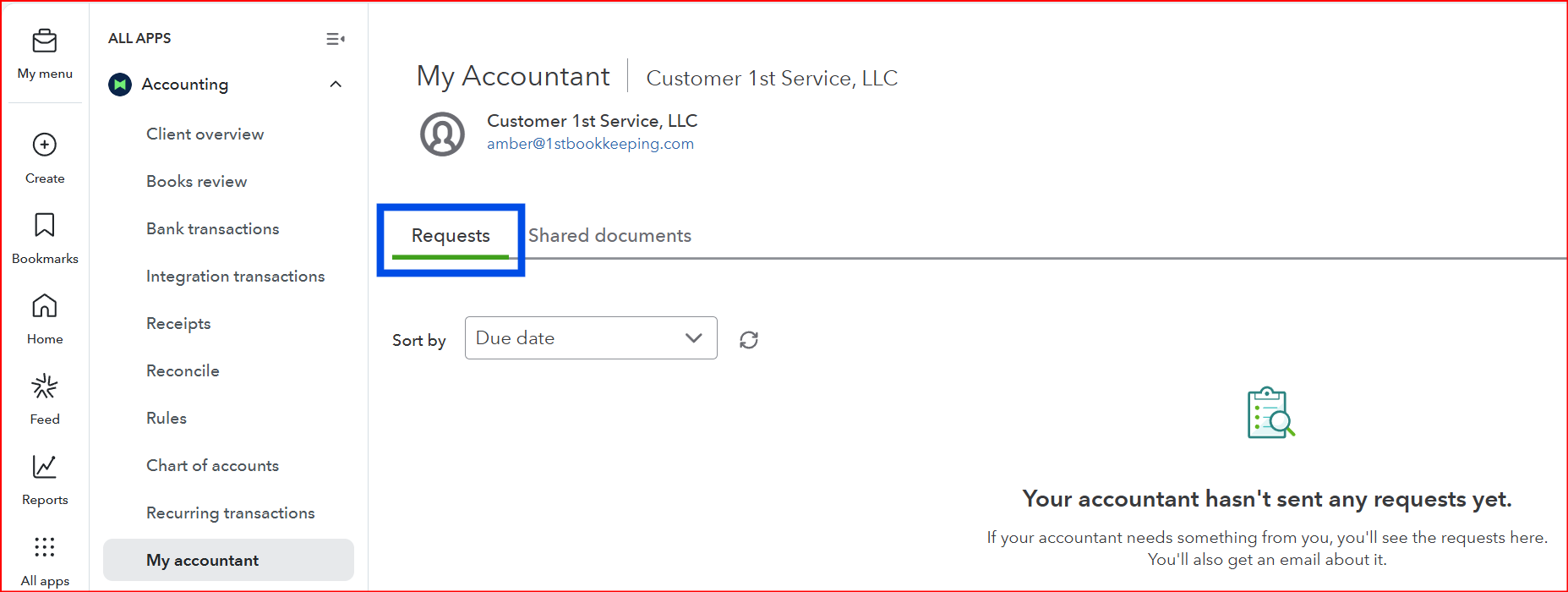
Requests
Where you'll respond when we need something specific from you — a receipt, a clarification, a document.
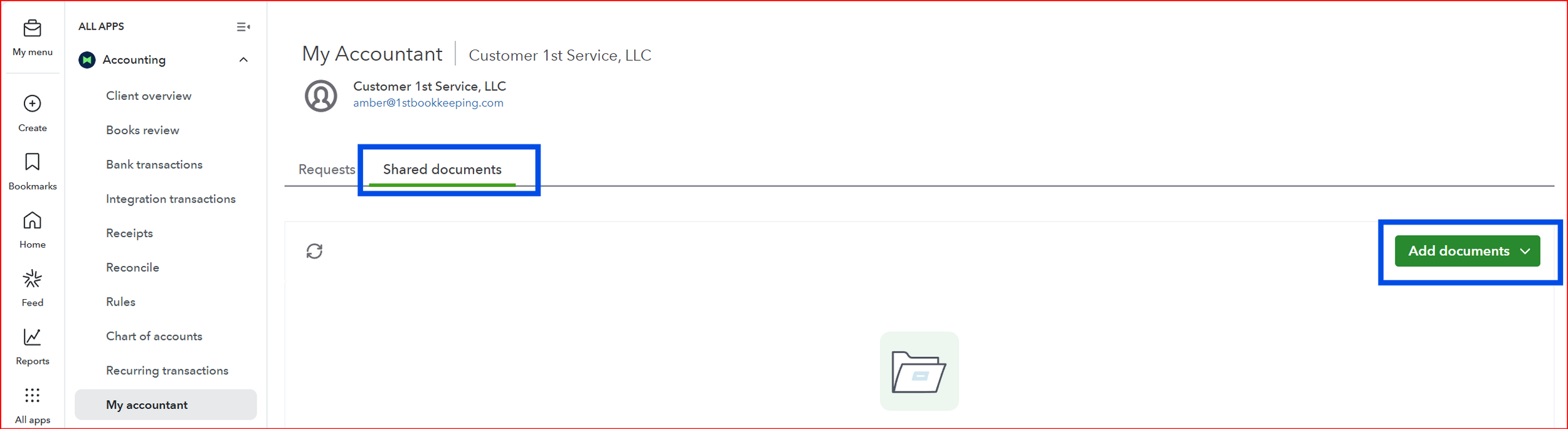
Shared Documents
A folder system organized by fiscal year, where your bookkeeping records live and stay accessible to both of us.
Responding to requests
You'll receive an email notification when we need something from you
Log in to QuickBooks Online
Navigate to All Apps → Accounting → My Accountant
Choose the Requests tab
Please respond to requests within 1–3 days. Answering these promptly is essential to keeping your bookkeeping accurate and on schedule.
Shared documents
Each fiscal year gets its own folder, broken down by month.
Good to know: upload documents to the month they actually belong to, not the month you happen to be uploading them in — for example, a March bank statement goes in 03 — Mar, even if you're uploading it in April.
Anatomy of a request
Here's what you'll see when you open an individual request.
Title & details
A short description of exactly what's being asked for, plus any additional context or instructions.
Due date
When we need your response by, so nothing holds up your bookkeeping.
Task status
Shows whether the request is still open ("To Do") or has already been completed.
Documents
Upload whatever's been requested directly here, right from your device.
Comments
Use this if you have a question, need to explain something further, or want to flag anything before uploading.
Questions about anything in QuickBooks? Reach out anytime at contact@1stbookkeeping.com.